Control costs

Live job costing from labour, materials and machines.

Manage teams

Plan people, hours and schedules in one place.

Track materials

Know exactly what you own and where it is.

Run projects

One system from kickoff to closeout.

Not sure where to start?

See the whole platform mapped to your day-to-day in a 20-minute walkthrough.

Enterprise demo account

A test environment configured around your own processes, available on request.

SolutionsInvoices
Invoices module

Invoices that know which quote and which project they came from.

RelayPlan Invoices holds issued invoices with their line items, cost centre and payment status — an invoice is raised from an accepted quote, sent by email, and the document carries a payment QR code.

Set up in minutesWorks with all modules

The invoice is the last link in the chain, not a separate document

If the invoice is raised outside the system, the link between quoted, spent and billed is broken. So is the only chance for project profitability to show itself without being assembled by hand.

Payment status on the list

Paid is a toggle on the list, and the payment date is written automatically.

Link to the source quote

An invoice raised from a quote names it as the source, so the comparison is always to hand.

Revenue on the cost centre

The invoice belongs to a project, so revenue and costs meet in the same place.

Payment QR on the document

A code carrying the account, reference and amount means the client pays in one scan.

Invoicing for construction and field service firms

Most construction firms raise invoices in an accounting package that knows nothing about the project. The result is familiar: revenue in one system, labour and material costs in another, and project profitability assembled by hand if at all.

RelayPlan Invoices keeps the issued invoice where the work happens. Line items come from the accepted quote, the invoice is tied to a cost centre, and payment status is tracked on the list with its payment date.

Because revenue and costs hang off the same cost centre, project profitability is visible without reconciling between systems. The payment QR code on the document shortens the path to being paid, which on construction payment terms is worth something on its own.

Invoices and a calculator on an office desk
For each invoice RelayPlan keeps

Invoice number · client · source quote number · product and service lines · net, subtotal and VAT · total · issue and due dates · payment status and payment date · date sent · PDF document with a payment QR code.

Everything the Invoices module does

From one invoice per project to regular monthly billing by phase.

Invoices and documents on a desk

Issued invoice list

Every invoice on one list, with payment status, amount and dates visible at a glance.

Search plus Paid and Type filters
Choose which columns show
Download the PDF from the list
Signing off a document

Quote into invoice

The invoice is raised from an accepted quote with its lines carried over and a link back to it.

Line items carried over
Source quote field with a link
Nothing entered twice
Project drawing and paperwork

Lines and summary

Lines split into products and services, and the summary adds net, subtotal and VAT up to the total.

Products and Services groups
Net, subtotal, VAT and total
Line items edited on the document
Preparing and sending documents

Send by email

Send the invoice from the system, with a document preview and text you edit before it goes.

Document preview
Subject and attachment name prefilled
Copy to yourself on request
Settling a payment at a counter

Payment and QR code

The document carries a QR code with the account, reference and amount, and you mark payment with a toggle on the list.

Payment QR on the document
Paid toggle with a date
Filter by payment status
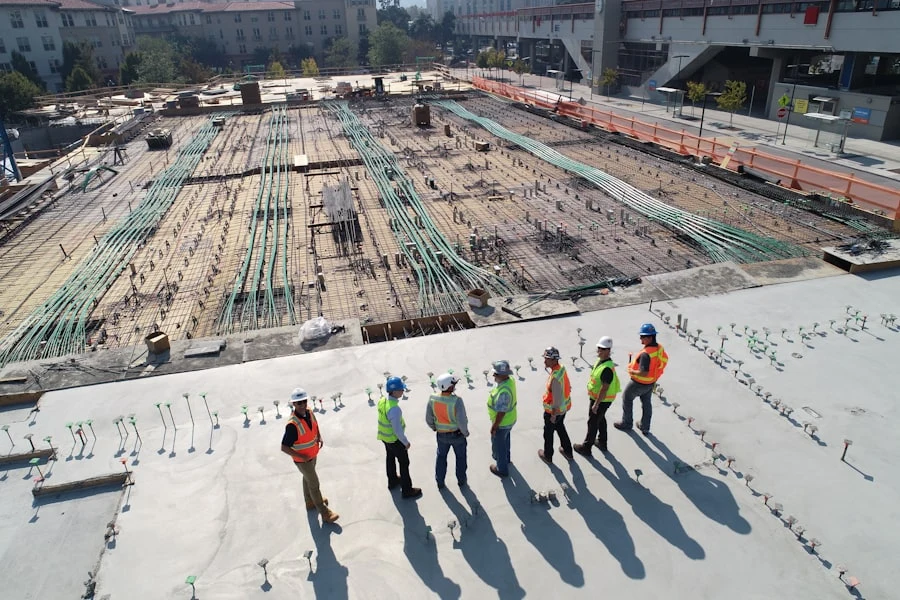
Aerial view of a construction site

Revenue by project

Because the invoice belongs to a cost centre, revenue compares against the real costs of the same project.

Revenue on the cost centre
Compared with labour and material
Feeds the profitability report

Your first invoice in four steps

If the quote already exists, the invoice is a few clicks.

01
Open issued invoices

In the Quotes and invoices module, choose Issued invoices.

02
Create the invoice

From an accepted quote or from scratch, with a client and a cost centre.

03
Check the summary

Net, VAT and the total recalculate as you go.

04
Send and track

Send the invoice, then mark it paid on the list when the money arrives.

100%
of invoices tied to a cost centre
QR
payment in a single scan
0
line items retyped from the quote
Live
payment status on the list

Stronger with every module you turn on

Invoices close the path that began with a quote and ran through the work on site.

See all solutions →
Quotes

An invoice is raised from an accepted quote with its line items.

Projects

Revenue belongs to the same cost centre as the costs.

Orders

The buying side of the project meets the selling side in one place.

Time tracking

Billed services compare against the hours actually worked.

Invoices — frequently asked questions

It depends on the plan: one on Free, twenty on Pro and a thousand on Corpo. Current limits are in the comparison table on the Pricing page.
No. RelayPlan raises the invoice where the work happens and ties it to the project. For the books, VAT returns and filing you carry on with your accounting package, exporting the documents to it.
It is a payment code carrying the account number, payment reference and amount. The client scans it in their banking app and the payment is filled in without anything being retyped.
With the Paid toggle on the issued invoice list. The payment date is written automatically and the list can be filtered by payment status.
Yes. Create the invoice directly and add its line items. The Source quote field simply stays empty.
The buying side runs through the Orders module, where goods received are matched to stock. Entry of received invoices and expenses is in preparation.
On the document itself. The send window only edits the covering message and the text printed on the document.

Bill from where the work happens.

Start free and tie your first invoice to a project today.